
Talk it through in ChatGPT, then schedule your X post with GrowX MCP
An idea for a post can appear while you research or talk something through. Use your past posts as a voice reference, discuss a time with data, name the account and schedule to X from the same ChatGPT conversation.
What you can do after reading
Develop a post in your usual ChatGPT using past post text, choose a posting time and account, then schedule and check the reservation through GrowX without leaving the conversation.
Scope & requirements · Features checked Oct 20, 2026
Requires GrowX Standard or higher and a ChatGPT environment supporting custom MCP connections. Enable draft and scheduling permissions in GrowX and reconnect after the initial setup. Destinations must be connected X accounts you can operate. Conversation and approval images are reconstructions; the chart uses fictional illustrative data.
On this page
- 01Prepare posts from the ChatGPT you already use
- 021. Turn “I should post this” into a draft idea
- 032. Ask when to post, with data behind the suggestion
- 043. Name the account and time, then schedule
- 054. Check and change the reservation from the chat
- 06Use a graph to explore the suggestion
- 07Set up the connection and permissions once
- 08Try one post from your current conversation
- 09Scope and sources
You are researching something and think, “That would make a good post.” Or a useful phrase takes shape while you are talking an idea through with ChatGPT.
Now imagine continuing with, “Schedule this from my brand account.” You can take the thought through to a scheduled post in the same conversation, without the friction of opening another posting app.
Connect GrowX to ChatGPT to work from your past post text and metrics, discuss a suitable posting time, and schedule to the account you choose. The most useful part is simple: the conversation where you develop the post can also be the conversation where you schedule it.
Prepare posts from the ChatGPT you already use
MCP connects ChatGPT to GrowX's data and actions. Once the initial connection and permissions are set up, you can use GrowX from your usual chats. You do not need commands or code.
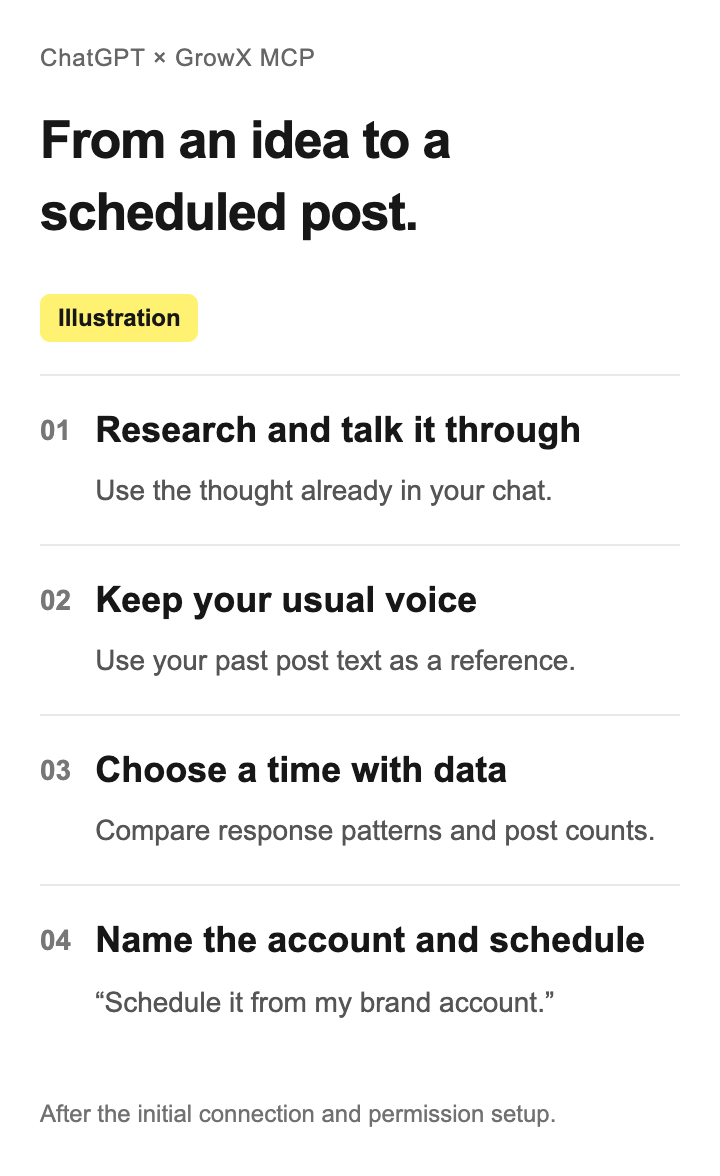
The impulse to post does not only arrive while you are looking at analytics. It might happen while reading, organizing your thoughts about work, or explaining an idea to someone. You can carry that context into a post and schedule it without breaking the conversation.
The prompts below are examples to try, not a transcript of an actual session. Account names, text and dates are illustrative. Conversation and approval images are reconstructions, not screenshots captured from ChatGPT.
1. Turn “I should post this” into a draft idea
Use the material you have just been researching with ChatGPT as a starting point.
Suggest three angles for an X post from what we just researched. Read the latest 10 original posts from my personal account in GrowX and use their phrasing, endings and length as a reference. Do not schedule anything yet.
The useful detail is that GrowX can provide your actual past post text, as well as the numbers. Rather than explaining your preferred tone from scratch each time, you can ask ChatGPT to refer to how you already write.
Then continue the discussion naturally.
The second idea is closest. Make it shorter, and use an ending like my usual posts instead of finishing with a question.
The reference is limited to the posts retrieved. Reading them does not guarantee a perfect match to your voice. Read the final text and ask whether you would say it that way. Check the facts, sources and extent of any quotations in the research before using it in a post.
2. Ask when to post, with data behind the suggestion
Once the wording works, ask about timing in the same chat.
Use this account's original posts from the last 90 days to suggest two posting days and times in Japan time. Include the post count, engagement rate and likes trend for each candidate, and explain where the evidence is weak.
GrowX has an analysis of post counts and engagement by weekday and hour. ChatGPT can read those numbers and use them to help you choose when to publish this post. You can follow up with a question as specific as, “How many posts is that suggestion based on?”
A suggestion is a guide based on past data. A time slot may look strong because a few unusually successful posts happened to land there. Do not label a sparsely sampled slot optimal. Consider the content, announcement deadline and your own plans too. Older CSV-only posts without an accurate posting time are excluded from GrowX's time analysis.
3. Name the account and time, then schedule
When you are happy with the wording and timing, continue the conversation.
I want to schedule this text from the brand account @your_brand connected to GrowX, at the next Thursday 9 am you suggested, in Japan time. Before scheduling, show me the exact calendar date, destination account and text.
If you use multiple accounts, you can name the destination in the chat: “my personal account” or “the brand account @your_brand.” The account must already be connected to GrowX and be one you have permission to operate. Adding accounts and account-count limits depend on your GrowX setup and plan. If names are ambiguous, ask GrowX to list the accounts you can operate and use the correct username.
Check the account, text, full date and time that ChatGPT shows. Then ask it to schedule.
Schedule it with that account, text and date and time.
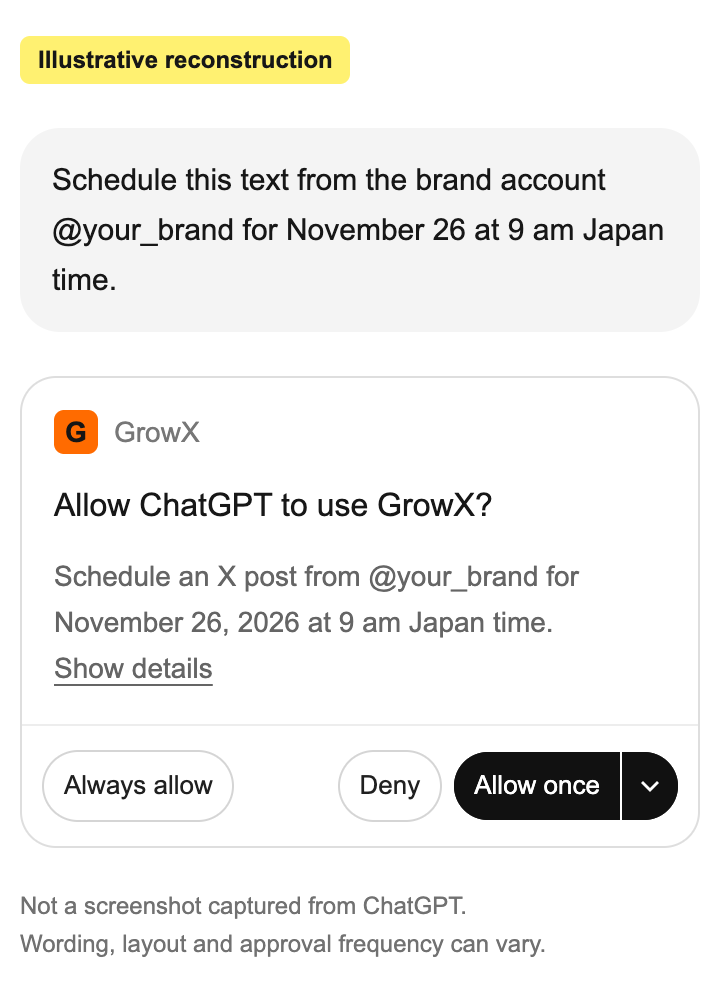
If ChatGPT asks you to approve a tool action, review what will happen before allowing it. If a details control is available, you can inspect the action there too. The image illustrates a case where approval choices appear. Wording, layout and approval frequency can change with ChatGPT's environment, settings and updates.
A persistent choice such as Always allow also affects later confirmations. When first trying the workflow, a choice that permits only the current action, if available, makes it easier to follow each step.
Creating a schedule makes the post publish automatically to X at the specified time. Discussing a post, saving a draft and scheduling it are different actions. If you do not want to commit to a publication time yet, ask to save a draft without scheduling.
4. Check and change the reservation from the chat
You can also ask for confirmation without making a separate app your next step.
Retrieve the reservation we just created from GrowX again and check its destination, text, scheduled time and status. Display the time in Japan time.
Check the reservation stored in GrowX, rather than relying only on a message saying it was scheduled. A scheduled post is not yet a published X post.
If you need a change, identify the reservation clearly and continue.
I want to change the time of the reservation we just checked. Show me the old and new dates and times.
Cancel that reservation and return it to drafts.
If a result is unclear, check the scheduled-post list before repeating the create request. You can also use GrowX's calendar when needed. The X scheduling guide explains the wider workflow.
Use a graph to explore the suggestion
To compare the timing candidates more closely, continue with a request such as this.
Graph the weekday and hour data you just retrieved so I can compare post counts and response patterns. Also compare average likes, calculated as total likes divided by post count, and highlight candidates with few posts. Do not invent missing values.
GrowX provides post data and aggregates; ChatGPT performs the additional calculations and creates the graph. Whether a graph can be created, and how it appears, also depends on the ChatGPT environment. If it cannot display one, you can still ask for a table of the same numbers.
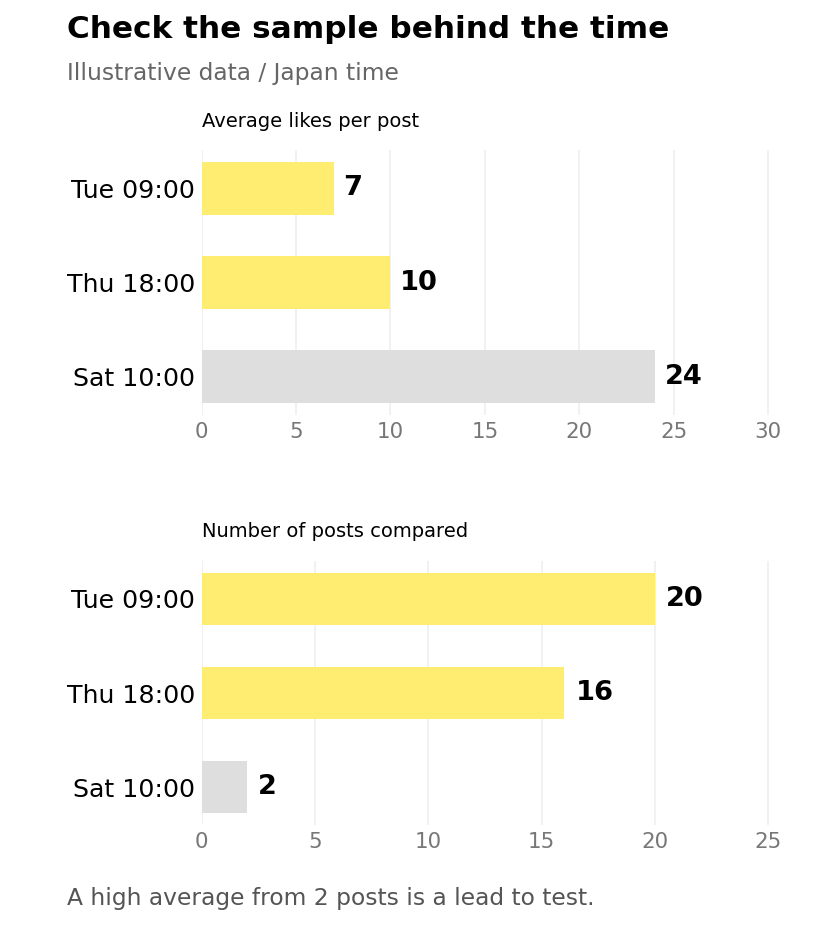
The chart uses invented numbers to explain how to read the comparison. It is neither a customer result nor an analysis actually produced in ChatGPT. If the highest average comes from only two posts, treat it as a time to test rather than a conclusion. The AI's suggestion is material for choosing your next step.
See OpenAI's visualization guide for the ChatGPT side of visual output.
Set up the connection and permissions once
You need a GrowX Standard plan or higher, and a ChatGPT environment that allows custom MCP connections. ChatGPT availability depends on its plan, workspace settings and other conditions. A GrowX subscription does not include ChatGPT charges.
- In ChatGPT's plugin settings, add a custom MCP server. Use
https://mcp.growx.nexus-ai.jp/mcpand OAuth authentication. - Sign in to GrowX in the authentication window, check the displayed account and permissions, and connect.
- Turn on the draft and scheduling actions you need in GrowX Settings, then reconnect from ChatGPT. A new connection initially permits reading only.
- Enable the added GrowX in your conversation and first ask it to list the accounts you can operate.
You do not need to create the connection again for each discussion and scheduled post. Expired authentication or permission changes can require reconnection. See the GrowX MCP connection guide and MCP Help for details.
Try one post from your current conversation
The next time you think “I should post this” while using ChatGPT, try starting here.
Turn what we just discussed into an X post idea, using the past post text from my personal account connected to GrowX as a reference for my usual voice. Once the wording is decided, help me choose a posting time from my historical data. Do not schedule it yet: let us confirm the account, text and time before scheduling.
Research, discuss and find the words. Then carry that same conversation through to a scheduled post. GrowX MCP connects the thinking you already do in ChatGPT with preparing your next publication.
Scope and sources
This guide describes retrieving post text, reviewing timing data, and creating, checking and changing drafts or schedules for connected X accounts. Publishing long-form X Articles is a separate topic. Available data is limited to what GrowX has imported and what the selected account and permissions allow. No engagement or outcome is guaranteed.