
Schedule an X post: prepare a draft, set a time and check the queue
A practical guide to preparing an X post in GrowX, choosing its publication time, and checking the scheduled post before it goes live.
What you can do after reading
Prepare a draft, schedule it for X, check the account and time, and decide when to edit or cancel the scheduled post.
Scope & requirements · Features checked Oct 19, 2026
This guide covers posting to X through GrowX. A connected X account and posting permissions are required. Scheduling limits depend on your plan and contract. This is not a guide to general availability for Instagram, Threads, Facebook or TikTok.
On this page
Decide what should go live, and when
Scheduling prepares a post to be published at a specified time. Saving a draft and scheduling a post are separate actions. A saved draft is not automatically queued for publication.
Choose the X account, publication date and time, text, and any images first. For an announcement, check that the destination link will be available when the post goes live. For a campaign, confirm its dates and conditions. Scheduling alone does not guarantee more engagement.
When you manage several accounts, check the selected account twice: before writing and immediately before scheduling.
Prepare the text and images as a draft
- Select the intended X account in GrowX and open the post composer.
- Write the post and attach any images. Check links, image order and the character count.
- Review the preview. Add ALT text to images where needed.
- Save a draft if you want to review the content later.
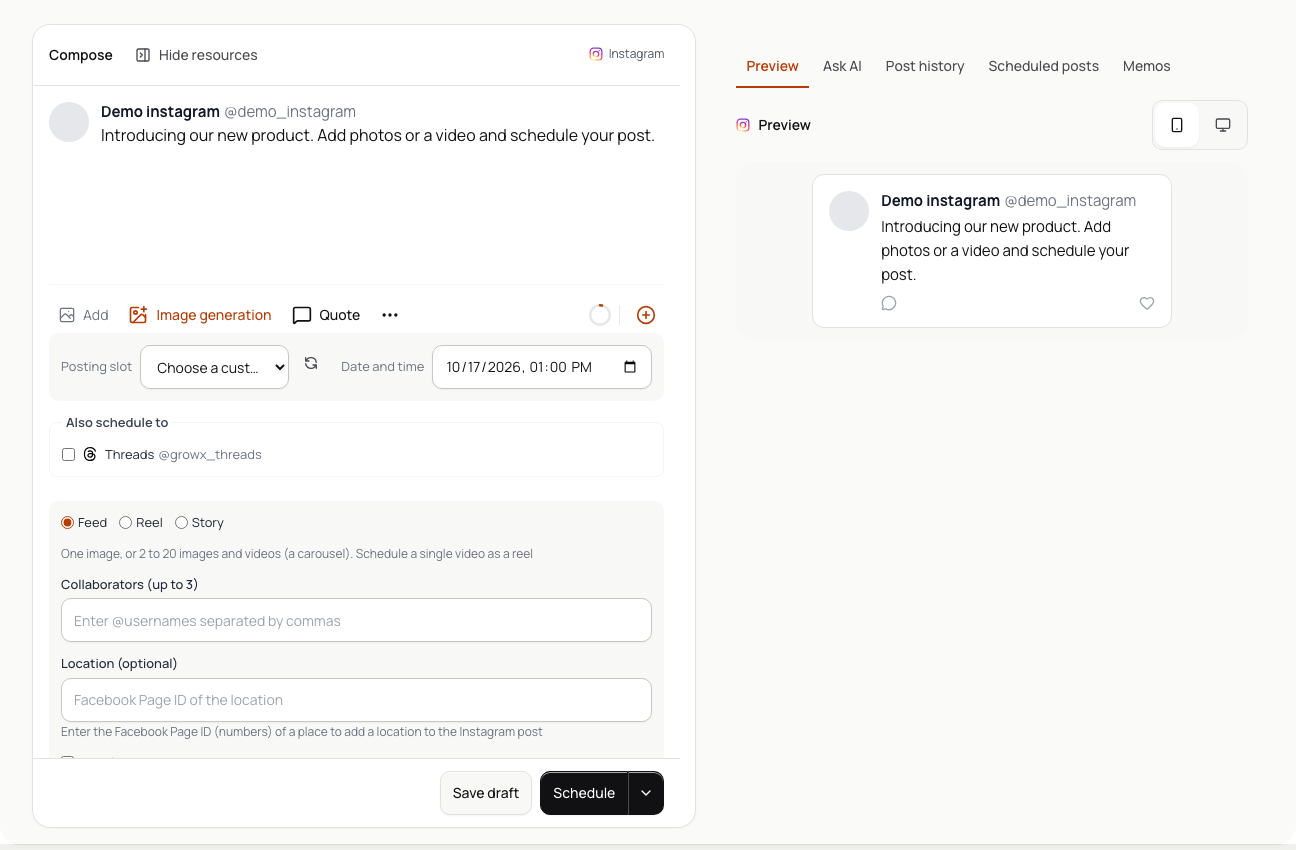
This screen example renders the actual product components with sample data. Available features and displayed content depend on the account and plan.
When reviewing a draft, check its images and ALT text as well as its text. The preview helps you prepare the post; it does not guarantee an exact match with every detail of X's final display.
Choose a publication time
In the composer, select a saved time slot or set a custom date and time. Slots are useful for times you use regularly. A custom time works well for a one-off announcement.
Check both the date and the time before choosing Schedule. Also confirm that the device's clock and time zone match your intention. When working with colleagues in different regions, share the date and time zone explicitly.
If saving fails, check the error before assuming the post has been scheduled. Review the account connection, posting permissions, text and attachment requirements, and your scheduling limit. See plans and requirements for current limits.
Check the list and calendar after scheduling
Find the post in the scheduled list or calendar after saving it. Use the list to check content in time order and the calendar to review the month's schedule.
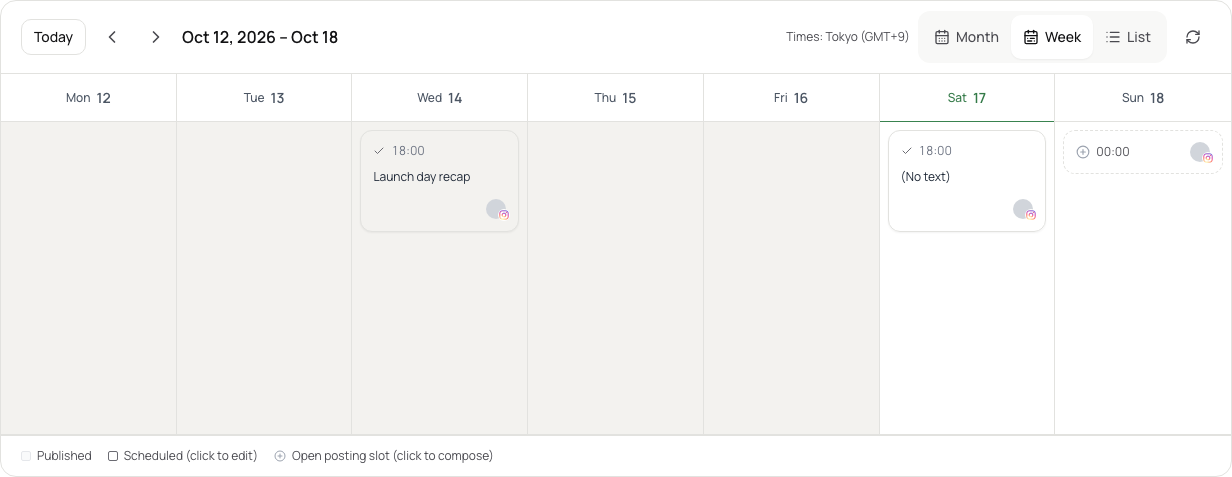
The screen example uses sample data.
Check the destination account, text, attachments, date, time and scheduled status. Make sure the post is not still a draft and that the same announcement has not been scheduled twice. A post appearing in the queue does not mean X has already published it. Check the outcome after its publication time too.
Edit or cancel a scheduled post
Open the scheduled post to review and edit its text, time and attachments. After saving, check that the scheduled list reflects the change.
To stop publication, confirm that you have selected the correct scheduled post and delete it. If you want to reuse the text, preserve the necessary content in another draft first. Make changes well before publication time, because processing may already have started near that time.
Deleting an already published post on X is a separate action from cancelling a scheduled post. Check whether publication has completed before deciding what to do.
If the post does not appear
If the scheduled time has passed, check failure messages and notifications, then look for the post on the actual X profile. Retrying without checking the outcome can create a duplicate.
- Is the X connection valid, with the necessary posting permissions?
- Do the scheduled date, time and status match your intention?
- Does the text or media violate a requirement described by the error?
- Is X experiencing an outage or an API limitation?
If you need help, contact support with the time of the issue and the error shown. Do not send passwords or authentication tokens. See Help for more operation details.
Review the result before preparing the next post
Before increasing your queue, review published posts using comparable conditions. How to read X post analytics explains how to separate visibility from reactions and choose one change to try next.
The instructions were checked against GrowX's composer, draft and calendar implementation and existing help content on October 19, 2026. This article does not document scheduling in X's own apps or compare competing tools. Check Pricing for current requirements and Help for operation details.